
Introduction
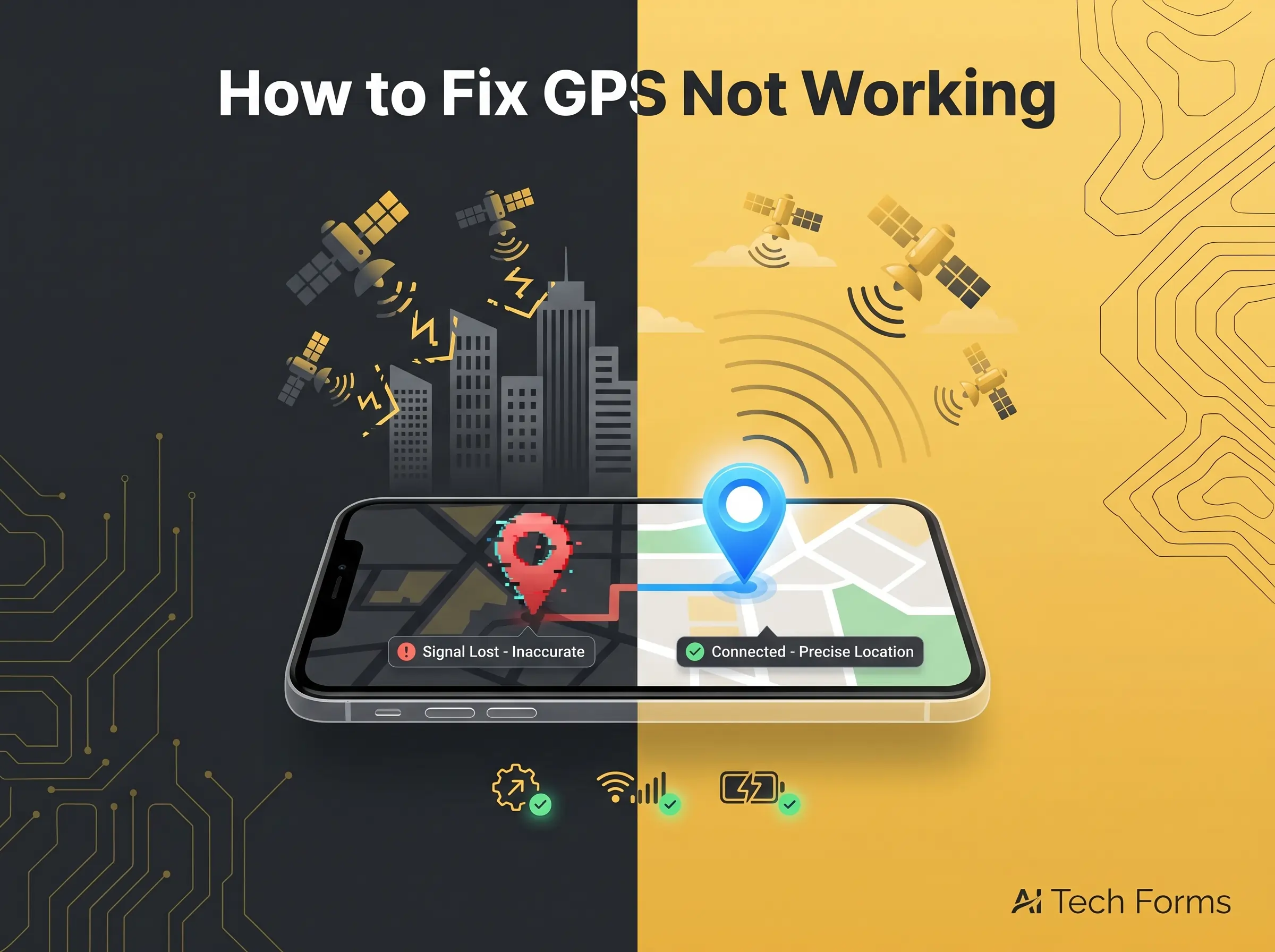
If your map is frozen, your blue dot is wrong, or navigation keeps losing you, you are not alone. The good news is that how to fix gps not working is usually about settings, signal, or app issues, not a broken phone. In most cases, you can get location working again with a few simple checks on your iPhone or Android device. Apple and Google both note that location tools depend on more than GPS alone.
Why GPS Stops Working
The first thing to understand is that GPS problems are often location accuracy problems. Your phone may be using GPS, Wi-Fi, Bluetooth, and cellular signals together to figure out where you are. If one of those pieces is blocked or turned off, the result can look like bad GPS even when the satellite chip is fine.
Common reasons your location fails
Weak signal is one of the biggest causes. Buildings, car window films, underground parking, and being indoors can all make location slower or less accurate. Battery saver can also reduce GPS performance on some phones, and old app data or wrong permissions can stop Maps from reading your location correctly.
Another common issue is the app itself. If GPS works in one app but not another, the problem may be with that app’s permission, cache, or settings instead of the phone hardware. Google recommends checking whether the issue is only in Google Maps and testing with a GPS status app when needed.
Start With the Fastest Fixes
Turn location off and back on
The simplest fix is to toggle Location off and then on again. On Android, Google recommends checking Location settings and using the stronger location modes where available. On iPhone, make sure Location Services is enabled and the app has permission to use it.
Restart your phone
A restart clears temporary glitches that can block GPS, location services, or the app that is trying to use them. Both Apple and Google support restart as a valid next step when Maps or location is not working the way it should.
Try a clear open area
If you are inside a building, under a roof, or near heavy signal interference, step outside and test again. Google notes that weak GPS or Wi-Fi signals can make location inaccurate, and some devices need a clear sky to get a proper GPS lock.
Check the Settings That Matter Most
Make sure Location Services is turned on
On iPhone, go to Settings, then Privacy & Security, then Location Services. Apple says the service must be on for apps to use your location, and each app also needs the right permission level.
On Android, open Settings, then Location. Google’s location settings let you control whether the phone uses GPS only or mixes GPS with Wi-Fi and mobile networks for better accuracy. High accuracy mode is usually the best choice when GPS seems weak.
Check app permissions
A lot of GPS issues come from app permissions, not the GPS chip. On iPhone, an app may be set to Never or While Using the App, and that can change how location behaves in the background. Apple also lets you turn Precise Location on or off for each app.
On Android, location access can vary by app and by version of the system. If Maps or another app cannot get your location, confirm the app is allowed to use location services in the background if needed.
Turn on Wi-Fi and mobile data
This surprises people, but Wi-Fi can help GPS accuracy even when you are not connected to a network. Google says Wi-Fi and mobile data help location tools work faster and more accurately, especially when the phone is indoors or the GPS signal is weak. Apple also says location services use crowd-sourced Wi-Fi hotspots and cellular towers along with GPS.
Fix Problems Inside Google Maps or Apple Maps
Clear the app and reopen it
If the problem only happens in one app, close it and open it again. Apple says quitting and reopening an app can fix app-specific problems, and it suggests restarting the device if that does not help.
Clear cache or app data on Android
On Android, stale app cache can cause location bugs in Maps and other navigation apps. Google’s Maps help pages show cache clearing as a valid step for app issues, and Android also explains that clearing cache removes temporary data only.
Update the app
Outdated app versions can break location features or cause bugs after system updates. If Maps, Waze, or another navigation app is old, update it first before moving to stronger fixes. This is especially important when the issue started after a recent phone update.
Fix Phone Settings That Can Block GPS
Turn off Battery Saver or Low Power mode
Battery saver can make location less accurate or slow to update. Google specifically points out that battery saver mode can cause location to jump around, and it also notes that some phones reduce GPS behavior when the battery is low.
Turn off Airplane Mode
Airplane Mode can interrupt the signals your phone needs for location accuracy. Google’s Maps help says to turn it off when location is wrong or out of date. If it was turned on by mistake, that alone may be the reason GPS seems dead.
Check date and time
Wrong date and time settings can affect location services. Apple specifically recommends checking that the date, time, and time zone are set correctly and using Set Automatically when available.
Use Location Accuracy Features
On Android, enable better location modes
Google says Location Accuracy helps your phone figure out where it is more quickly and more accurately than GPS alone, especially indoors. If your phone has this option, it is worth turning on when GPS is slow or unstable.
Calibrate your compass
If the blue dot points the wrong way or wanders, the compass may need calibration. Google Maps lets you calibrate by moving the phone in a figure 8 or following the on-screen calibration steps. That can improve direction and position when navigation feels off.
Reset the Network When Nothing Else Works
Reset network settings
A network reset can fix stubborn location problems because GPS often depends on Wi-Fi, mobile data, and related system services. On iPhone, Apple says Reset Network Settings removes Wi-Fi networks, passwords, cellular settings, and VPN or APN settings, so use it only after simpler steps fail.
Reset location and privacy settings
If app permissions seem broken or location prompts behave strangely, a location privacy reset can help. Apple says resetting location and privacy returns those permissions to default, so apps will need permission again before they can use Location Services.
How to Know It Might Be Hardware
If your device still cannot get a GPS signal outdoors with a clear sky and full battery, the issue may be hardware related. Google says that if a phone cannot acquire GPS under those conditions, it may need repair. That is the point where software fixes stop being enough.
A hardware problem is more likely if GPS fails in every app, across restarts, after settings resets, and in open outdoor areas. That pattern usually means the issue is deeper than permissions or cache.
A Better Way to Think About GPS Problems
Most people search for how to fix gps not working because they think the satellite part failed. In reality, the problem is often a location system problem, not a pure GPS problem. Your phone may be missing Wi-Fi support, permissions, accuracy mode, or the right app settings, which is why the fix is often in Settings, not in the map app itself.
That is the fresh angle many guides miss. GPS on modern phones is part of a bigger location stack, so the best fix is usually to check the whole stack one layer at a time. Start with permissions, then location modes, then signal conditions, then app cleanup, and only after that move to resets or repair.
FAQ’s
Q1. What to do if GPS is not working?
Start by turning Location off and back on, then restart your phone. If that does not help, check permissions for the app you are using and test again in an open outdoor area.
Q2. Why is GPS not working?
GPS often fails because of weak signal, bad permissions, battery saver, wrong time settings, or app problems. On phones, location usually depends on GPS plus Wi-Fi and cellular signals, so one weak part can cause the whole system to look broken.
Q3. How do I reset my GPS?
There is no single GPS reset button on most phones, but you can restart the phone, toggle Location off and on, clear app cache on Android, or reset network settings on iPhone. Those steps refresh the parts of the phone that support location services.
Q4. How do I fix no GPS signal?
Move to an open area, turn off Airplane Mode, make sure Wi-Fi or mobile data is on, and check that Location Services are enabled. If the signal is still missing outdoors with a clear sky, the device may need repair.
Q5. What stops GPS signal?
Buildings, metal window films, indoor spaces, battery saver, and disabled location settings can all stop or weaken GPS. Some phones also struggle if the app does not have the right permission or if the system time is wrong.
Conclusion
When GPS stops working, start simple. Check Location Services, app permissions, signal conditions, battery saver, and date and time before you move to resets or repair. In most cases, that is enough to bring location back. If you need more troubleshooting guides like this, visit AI Tech Forms.
